Children's Books Online - Read, Create & Share - BigUniverse.com
Great resource featuring online books. Also allows creation and publishing of books by students.

Children's Books Online - Read, Create & Share - BigUniverse.com
Great resource featuring online books. Also allows creation and publishing of books by students.
 I am very excited that I will have a chance to actually use and review the TeacherMate handheld computer. These handhelds are being promoted as a low cost 1:1 computing solution for grades K-3. For a limited time they are allowing teachers to test the machines for free for 30 days! I am looking forward to seeing how the software works. I am looking into how I can possibly create a 1:1 environment for the 2009-10 school year, but I am not sure what hardware (whether it is the TeacherMate or XO-1 or something else) I will try to get.
This is a low-tech idea that I came across about 4 years ago online. Once I saw it, I've been using it in my classroom every year since. They are called many things, M.O.O.S.E. Books, B.E.A.R. Books, B.E.E. Binders, etc. But one thing you can be sure of -- is that they work. They are simply organizational binders that students use through out the school year. Students take them home and bring them to school each day. They can be used as a communication tool between school and home. They house homework packets. They hold behavior reports. They are basically hubs of student information.
There are many different acronyms that you can use for your own organizational binders. I chose L.I.O.N. (Let's Instill Organization Now) because that is our school mascot. These binders have saved me so many times. Students stopped losing their lunch money because they now had a secure place for it. I got notes from parents (and vice versa) because their child would see the note in their L.I.O.N. Book and actually remember to give it to me.
Here are the sections I use in my L.I.O.N. Books (maybe one of these days I will remember to take pictures):
In a white 1" three-ring binder we have:
Homework pocket: The front pocket of the binder is labeled for homework. Students know where to put it and parents know where to look for it.
Money pouch: A clear ziploc pencil holder works best. I simply label it "Money Pocket" because it can hold picture money or field trip money, in addition to lunch money.
Behavior Calendar: I use the green, yellow, orange, red card system. (All students have a pocket with the four cards. They all start the day on green. If they are reprimanded or break the rules, they turn their card). The students have a grid calendar I created in excel for each month. Every day, I stamp the color they are on in their LION Books using the appropriate Dot-to-Dot marker color. At the end of the month, parents sign the behavior calendars to verify they have seen the record of their child's behavior. Students who have 20 green dots and a parent signature get to choose a prize from my toy chest. This motivates students to keep their calendars even though they may have had a few bad days.
In clear protective sheets, I put:
Monthly lunch menu
School calendar showing vacations/no school days
My rules and procedures packet that parents can reference
Other L.I.O.N. Book components are:
Absent notes: These are sheets that parents can fill out for students being absent.
Parent/Teacher communication notes: Lined paper so parents can write me a quick note. I tell parents to take the note out and fold it up and put it inside the protective cover on the front of the LION Book. The child can see it and remember to give it to me.
Returned work: The back pocket of the binder is where checked work to go home goes.
L.I.O.N. Book Resources (with pictures):
http://www.teachingheart.net/moosebooks.html
http://www.mrsmcdowell.com/bee%20book.htm
http://www.davenportsclass.com/moose_books.htm
http://www.madison.k12.al.us/mtcarmel/0_kindergarten/solley/moosebookpage.html
http://www.msvines.com/beebook.htm
L.I.O.N. Book Acronyms:
http://www.smithsroom.com/MOOSE_Acronyms.htm
http://www.geocities.com/jankwv/beabooks.html
If you are looking for a way to keep your students organized and responsible through the school year, I highly recommend using these binders. They really work for me!

After my daughter was born, my aunt gave me the book Baby Signing 1 2 3. I heard of using sign language with babies to help with their language development. However, I was a little skeptical about its effectiveness. But I decided to go ahead and try it with my baby -- it definitely could not hurt her, right?
I began signing with her a few weeks after she was born. The book stated that most babies would not be able to sign back until they were 4 months old. However, some may begin to recognize signs at 3 months. With my daughter, I started with the "changing diapers" sign. During diaper changes, my daughter would normally get upset and cry, but as I kept signing with her and singing "time to change the baby", I noticed she began to calm down. Soon, she began to smile and laugh when I signed to her. Then, last weekend, when I was changing my daughter, I noticed she was trying to put her hands together to make the changing sign when I signed it to her. I thought I was seeing things! I did it five more times, and each time she signed back to me! When my husband got home, I told him what the baby did. He was skeptical, but when he changed her and signed to her, she did the same thing.
Now, here's the kicker. The next day, I could tell my daughter was, uh, taking care of business, in her diaper. While she was doing it, she began to make the sign for changing the diaper! She was talking to me, telling me that her diaper needed to be changed! It was amazing!! So I would highly recommend a baby signing book to anyone with a baby. It truly works!!
JeopardyLabs - Online Jeopardy Template
build jeopardy games online; choose number of teams and track scores
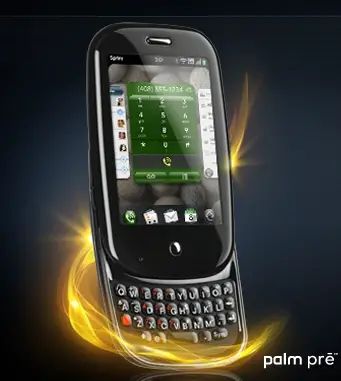
I was checking my email last Friday and was excited to see the an email from Sprint about the new Palm Pre. If you have been following the buzz about this phone, you already know how gadget geeks have been salivating over this upcoming smartphone since it was unveiled at CES earlier this year. I admit, that I, too, have been drooling over pics at the official Sprint site.
All of this started me thinking: if - and that is a big IF -I were to plunk down the money for this phone (as of now, Sprint has not announced a price yet), I would need it to function for my personal life and in the classroom.
Personal use of the Palm Pre looks pretty sweet. It looks like my dream phone -- one that can sync information into the cloud. Like many, I am a heavy user of Gmail, Google Calendar, Reader, etc. What bugged me about my Centro is that there is no way to sync my Google calendar or Gmail contacts with my Palm software (without paying hefty subscription fees. Boo Goosync!) But the Pre will be able to sync wirelessly and intuitively to my cloud information. At least that is what I am hoping... And all this with (finally!?) updated multi-touch hardware and software that can is worthy to be put in the same category of the iPhone. I even downloaded an WebOs emulator, but it has been removed from the site. It works pretty well though and wetted my appetite for the Pre even more...
The Pre may be up to the classroom challenge as well; but we will have to see what applications will become available through the Sprint/Palm WebOs application store. In the past, the Palm platform has had quite a few programs that worked well in the classroom environment: Quiz Buddy, Inspiration, grading scales, outliner applications, just to name a few. But is it worth it to use a smartphone in the classroom instead?
Then I came across the following post from the Learning is Change Blog about "Strategies for Mobile Devices in the Classroom." Very interesting links including a blog solely dedicated to using cell phones in the classroom. But what really caught my eye were the sites TextMarks (even if you just used it to post school closings or emergencies would be great) and TextTheMob (which would work fantastic if you have a Smartboard!) Very cool stuff. Has anybody used these sites in the classroom? Has anybody used cellphones with K-2 students in the classroom?
http://learningischange.com/2009/04/16/strategy-for-mobile-devices
Great resource from James Hollis. Interactive number line tool to use with the Smartboard. Great for Everyday Math lessons.
Teachers Love SMART Boards: SMART Boards and a Simple Number Line Tool
http://smartboards.typepad.com/smartboard/2009/03/smart-boards-and-a-simple-number-line-tool.html
What a great idea! Found this site via Learning is Change (great blog). Inspired classrooms is about finding the middle ground between having computers in the classrooms but not yet having a 1:1 computer situation. Simply by placing a few computers in an accessible manner where students can access them regularly can cause a huge shift in instruction. Make sure you check out the videos on the philosophy behind Inspired Classrooms -- good stuff, especially for elementary classrooms. When I return from maternity leave, I can't wait to try to implement this!
Great site of ideas on how to use technology (via Teaching Saggitarian)

The analysis indicates that the author of http://thehappyhappyapple.blogspot.com/ is of the type:

Me personally….well that is another story. But for those of you trying to figure it out, learn about twitter in Plain English:

What is 3B Village?
3B Village is an amazing cross between a 3D virtual chat room and a web browser. Using the free software you can visit or create your own 3D rooms which have walls lined with webpages that you can click on to visit. You use an avatar to wander the rooms visiting various websites whilst text chatting with other virtual visitors.
* Watch a demo here: Exploring 3B Village (2.4Mb Flash)
The learning potential for this software is huge and I can see how it could be especially useful for creating webquests or web based treasure hunts and other collaborative tasks for groups of students working virtually / at a distance. The software has none of the versatility of virtual worlds like Second Life, but partially due to that it seems like a much ‘safer’ environment to take students into and a much simpler one for teachers and students to learn how to navigate.
It is very easy to create your own rooms for your class and then just invite them along. You can create a room by specifying the URL of particular resources you want to share with your students or you can generate a ‘quick room’ using a range of other sources, like Flickr , Google, MySpace and you can even generate rooms full of YouTube videos.
I created a room just by doing a search in YouTube based on ‘Shakira’ I then create a quick room by pasting in the URL of my search results and within less than 5 clicks and 5 mins I had room full of videos to wander around.
* See how it looks: Shakira video room (2.5Mb Flash)
I also created a gallery type room by typing the word ‘family’ into Flickr and generating a gallery based on the results.
* See how it looks: Flickr gallery room (2.0Mb Flash)
Here’s a quick tutorial movie to show you just how easy it is to create a room
* Creating a quick room using Google search (1.5Mb Flash)
How to use this with students
* Create webquests and store the resources in a special 3B room(s) so that groups of students can work together virtually analysing data and searching for and sharing information
* Create film shows from Youtube that students can watch together. They can then do their viewing tasks together and discuss them as they watch.
* Meet together virtually and discus / share web resources
* Create your own collection of bookmarks to share with your class
* Students who have a 'MySpace' can convert it to a 3B room and show their classmates around. This should help to build up a sense of presence and familiarity with virtual classes, something that is often hard to do.
* Get your students to create their own collection of study bookmarks as a project to share with other students
* Create rooms based on materials from Flickr and get students to meet virtually to discuss the images
* Students can work together to create a 3B room or village which represents their town or country
* Students can visit a 3B city and write a report on it, plan a visit to that place based on the resources they access there.
What I like about it
* A nice collection of rooms already created including some for kids
* You can either create rooms quickly using searches through various online content such as Flickr, YouTube, or Google, or you can hand pick websites to create a customised room specifically for your students
* It’s simple to use
* It’s free
* At 14Mb it’s not too huge a download
* Love wandering round the YouTube video type rooms and this may well be a way around institution that block YouTube!!?
What I'm not so sure about
* No MAC version yet
* Would be great if it had voice chat too
* It’s definitely for broadband users only
* A lot of the ready made rooms seem to be aimed at online shoppers
* There aren’t many casual visitors, so it’s not a place where students are likely to bump into people for casual conversation. Though that could well be an advantage too.
For anyone involved in distance education or any kind of online courses, I think 3B Village could make a really valuable contribution.
To use 3B Village you’ll need to download and install the 3B browser software from.
http://download.3b.net/
There’s no MAC version yet, but they are working on it.
As ever, I would love to hear from anyone who uses this with their students. Please feel free to leave comments, though they will be moderated.
Best
Nik
Posted by Nik Peachey at 14:20


